Map Basics
Basic map gestures (pinch to zoom, drag to pan) work the same as in any map app, so this page does not cover them. Instead, it explains the elements of the map screen and the behaviors specific to SkyWalking V2.
Elements of the Map Screen
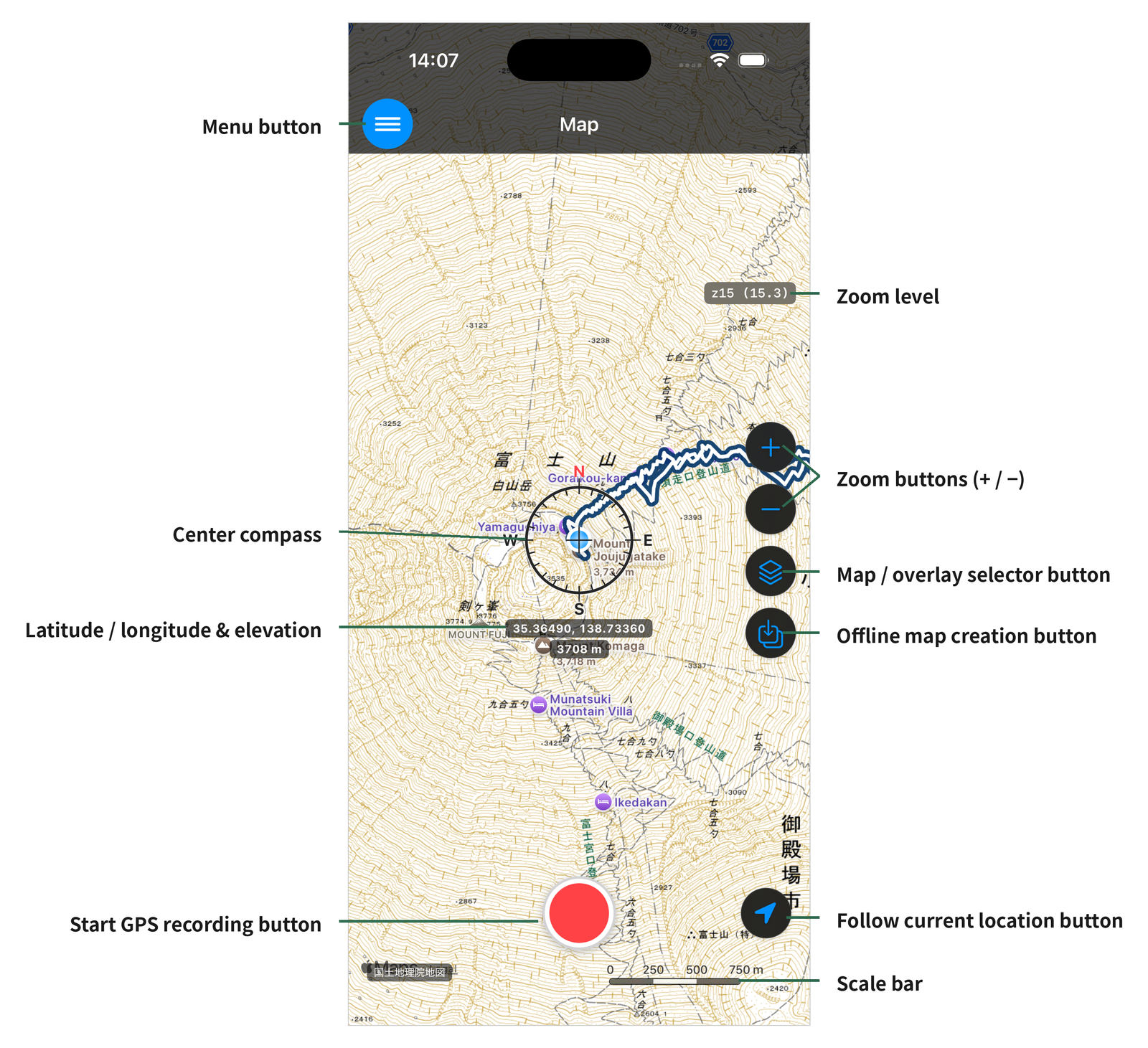
- Menu button — Opens the app menu. It appears together with the navigation bar (see below).
- Zoom level — Shows the current zoom value of the map.
- Zoom buttons (+ / −) — Tap to zoom the map in or out one step at a time.
- Map/overlay selection button — Opens the "Map Type Selection" screen for switching base maps and overlays. See "Map Types and Switching".
- Offline map creation button — Starts creating an offline map from the displayed area. See "Offline Maps".
- Location following button — Toggles location following mode on and off (see below).
- Scale bar — Shows a distance reference for the map.
- GPS recording start button — Starts recording a GPS track.
- Center compass — Marks the center of the screen. With following mode on, your current location stays here.
- Latitude/longitude and elevation display — Shows the coordinates and elevation of the screen center (the center compass position).
Behaviors Specific to SkyWalking V2
Appearance Mode (Light / Dark)
The app follows the iOS light/dark mode setting, and the screen colors change accordingly. The screenshots in this guide were taken mainly in dark mode.
Showing / Hiding the Navigation Bar
Each tap on the map toggles the navigation bar. Hiding it lets you use the full screen for the map. The menu button is tied to the navigation bar and appears when the navigation bar is visible.
Current Location
Your current position is shown on the map as a blue dot.
Location Following Mode
With following mode on, the map moves automatically so that your current position always stays at the center of the center compass.
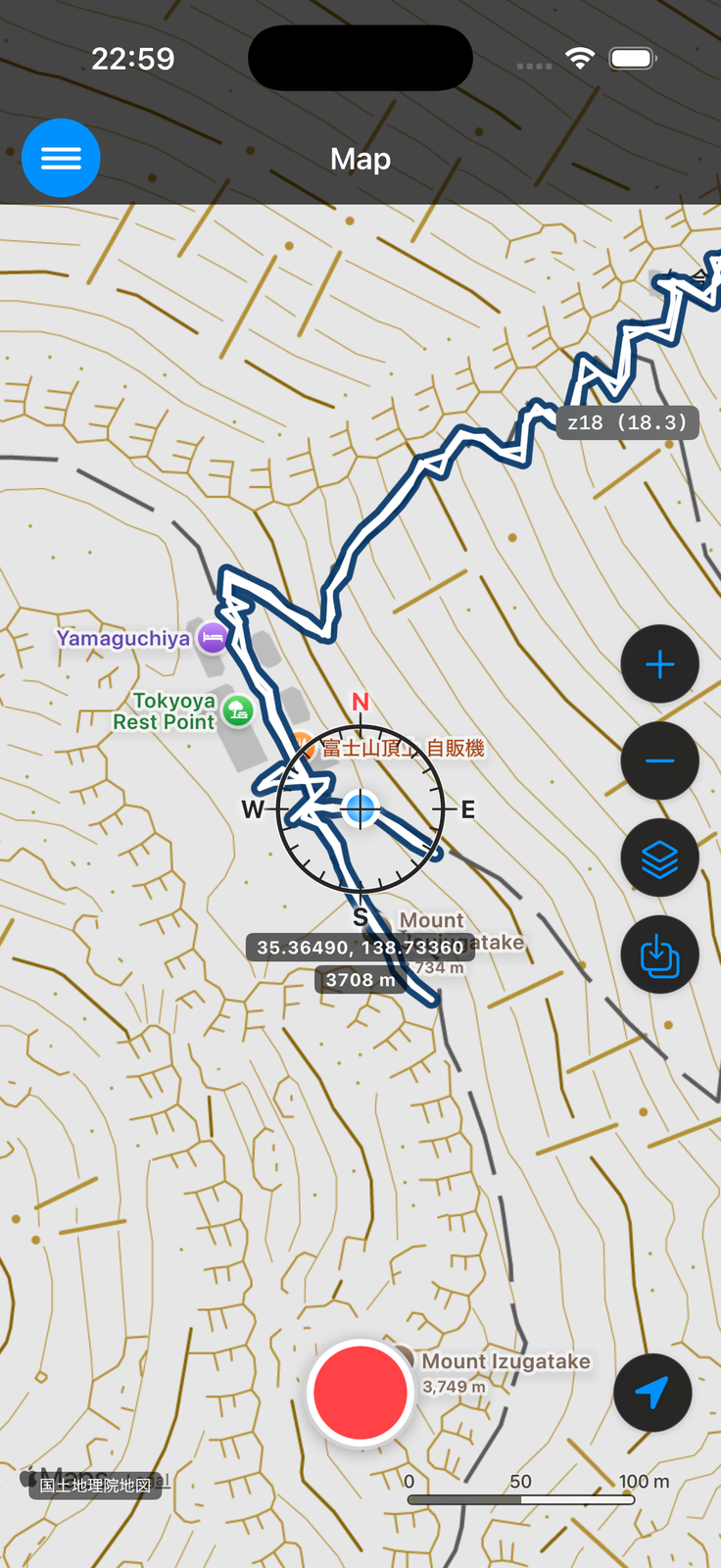
If you drag the map far enough that your current location moves off the screen, following mode turns off automatically and the message "Following released" is shown.
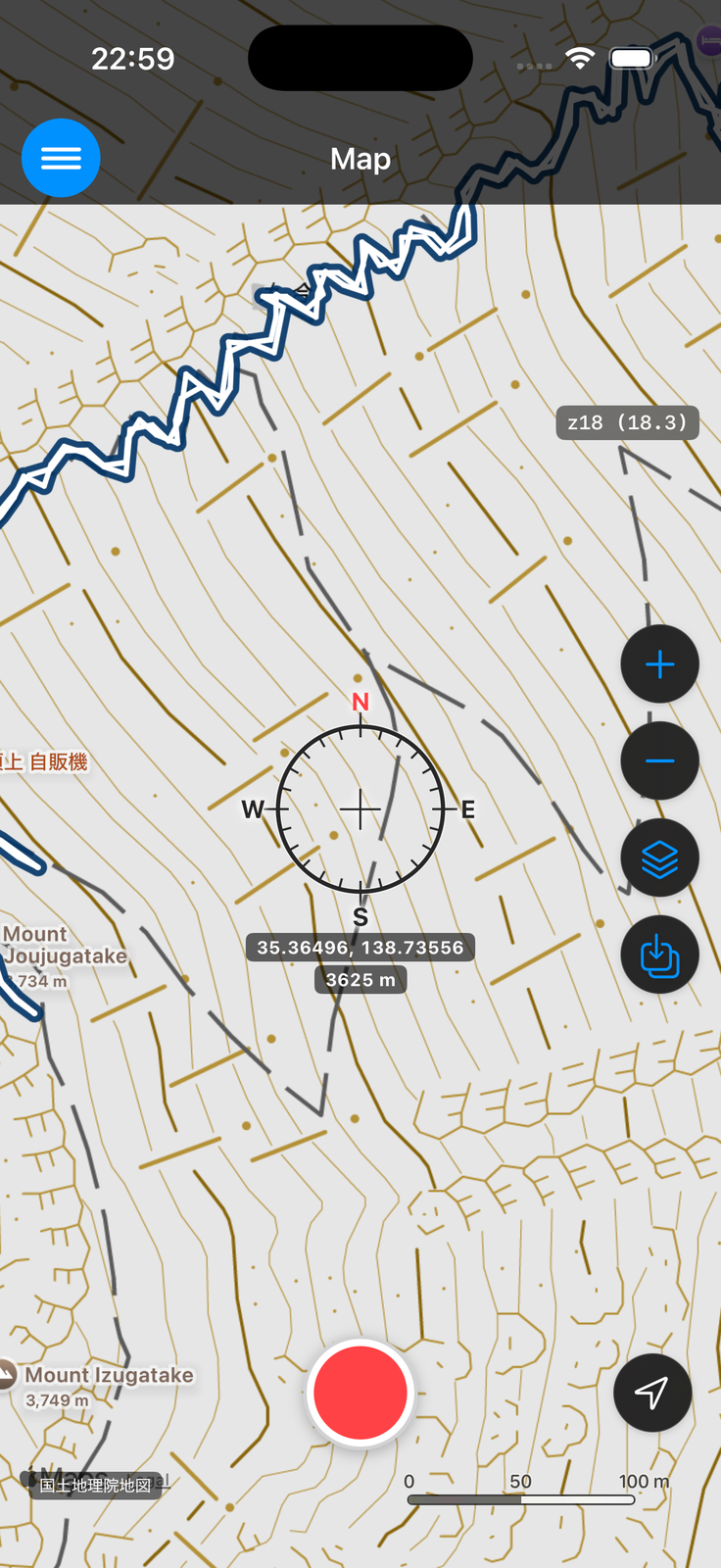
To follow your location again, tap the location following button to turn it back on.
You can tell whether following is ON or OFF by the appearance of the button.

Following ON — the arrow is filled blue

Following OFF — the arrow is outlined
Next, see "Map Types and Switching" for the five base maps and the overlays.
← Back to the User Guide contents